Published on 2024-06-11
Customizing Your Shell Prompts: More Than Just Eye Candy
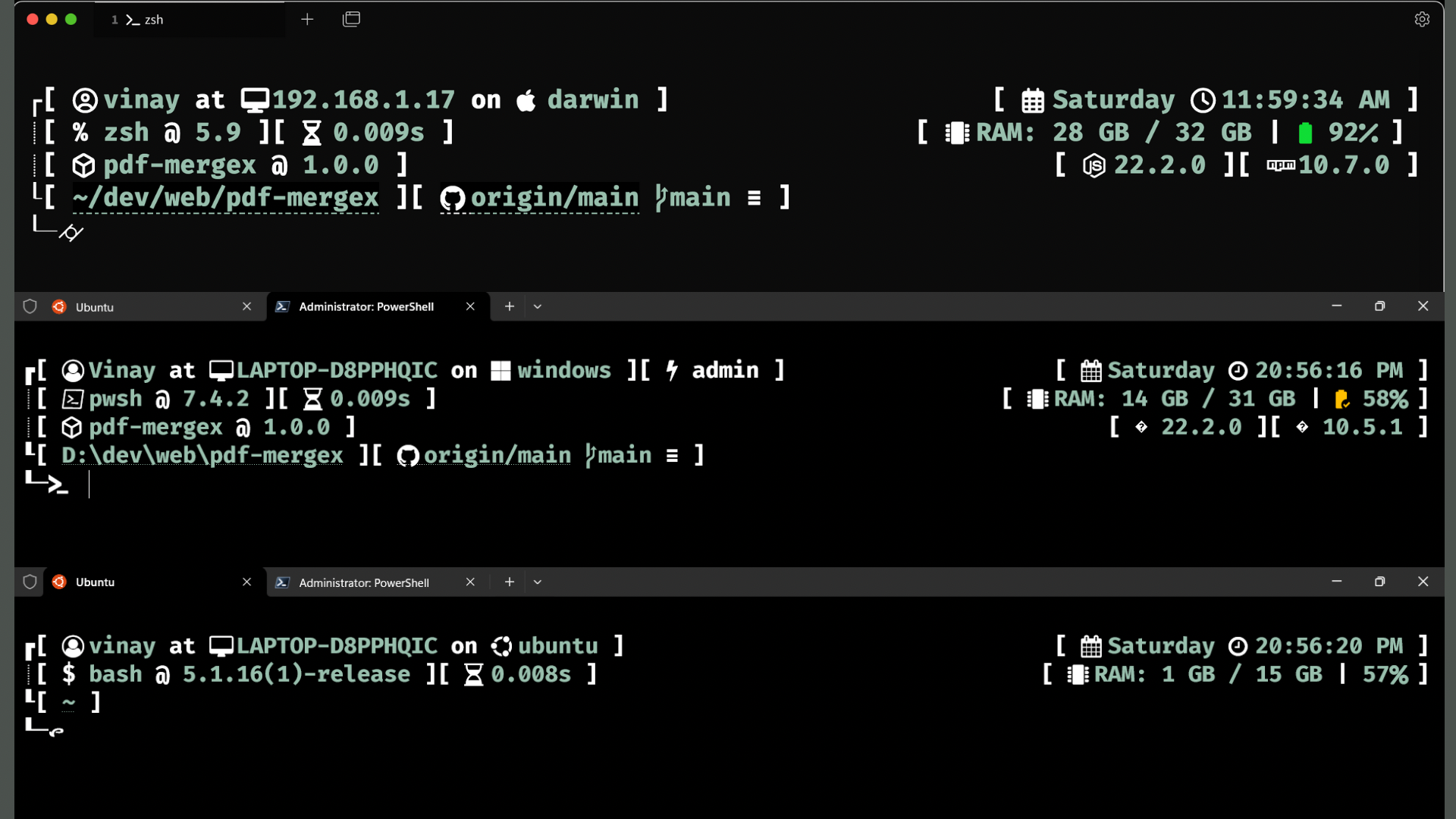
If you’re a developer or an IT professional in general, the command line is probably an essential tool for you. And maybe you’re bored of the default prompt you get with your shell. “But…customizing the prompt is just so much work and would eat up so much time that could instead be spent being productive.” Right? Wrong.
Customizing your shell prompts doesn’t have to take long or be complicated. There’s many tools you can use for this, my personal favourite, and we will be using in this article, is Oh My Posh. Personally, I find Oh My Posh the easiest to customize and configure for all your shells. It is compatible with Zsh, Bash, PowerShell, and many more shells and uses the same config files or ‘themes’ for them all.
Let's explore why customizing your shell prompt is more than just visual flair.
What is Oh My Posh?
Oh My Posh is a customizable, cross-platform prompt theme engine for various shell environments like Bash, PowerShell, and Zsh. It allows you to easily configure and display information in their shell prompt, such as Git branch status, execution time, and more, all with a splash of color and style.
Useful information at a glance
A well-customized prompt can stay minimal enough while displaying information that you may need throughout your development workflow without the need to run additional commands. For instance, showing the current Git branch and status directly in the prompt so you don’t have to run ‘git status’ over and over; showing the exit code and status of the last executed command right in the prompt; showing the project or account set in your gcloud config.
Consistency Across Platforms
If you’re like me, and work across different operating systems and shell environments, using Oh My Posh can help you maintain a consistent look and feel, reducing the need to constantly adjust your eyes to a different environment when switching platforms.
Setting things up...
You can use my custom scripts to automate the installation and configuration process.
Source code: https://github.com/rlpvin/setup-ohmyposh
Windows (PowerShell)
The script uses winget to install Oh My Posh and adds commands to the PowerShell profile to run OMP every time you start a PowerShell session.
Run the script:
Invoke-Expression (Invoke-WebRequest -Uri "https://raw.githubusercontent.com/rlpvin/setup-ohmyposh/main/unix/setup-omp-windows-pwsh.ps1").Content
macOS / Linux (zsh, bash)
If it isn’t already apparent, I love package managers! So, for the “unix” version of the script, I’ve used Homebrew to install OMP.
Run the script:
Using curl:
"$(ps -p $$ -o comm=)" -c "$(curl -fsSL https://raw.githubusercontent.com/rlpvin/setup-ohmyposh/main/unix/setup-omp-unix.sh)"
Using wget:
"$(ps -p $$ -o comm=)" -c "$(wget -qO- https://raw.githubusercontent.com/rlpvin/setup-ohmyposh/main/unix/setup-omp-unix.sh)"
Tip: It is always good practice to review the source code before running any script on your system. You can also find more information on the GitHub repository about running and troubleshooting the scripts, installing Nerd Fonts to display additional icons, and running the script for PowerShell on macOS or Linux.
Conclusion
Just as a personalized workspace can make one feel more comfortable and motivated, a customized prompt can inspire a sense of ownership and pride in your work environment. A colorful, well-organized prompt can make the command-line interface more engaging and less monotonous, which can boost morale and make long coding sessions more enjoyable.